

CartCubes Invoices for FluentCart 1.1.0 (23 Sep 2026) lets you mix store products on a one-time invoice, duplicate an invoice, show a checkout message, open the FluentCart order, list unpaid invoices in the customer account, and run invoices from FluentCRM. See the Invoices page and the changelog.
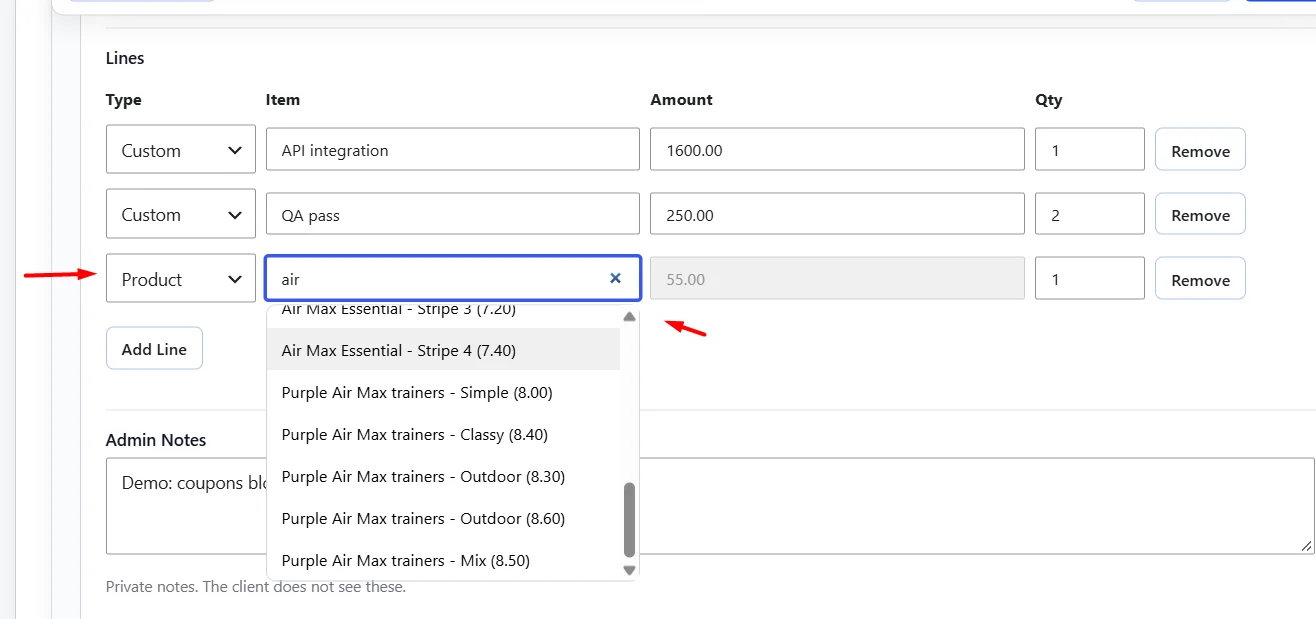
Store products on a one-time invoice
A one-time invoice can mix custom lines and store products on one Pay Now link. Product lines use the catalog price. Subscription invoices stay one custom amount.
Use this when the client should pay for a shop product and a custom fee together, such as a product plus setup, without building a second checkout.
Duplicate an invoice
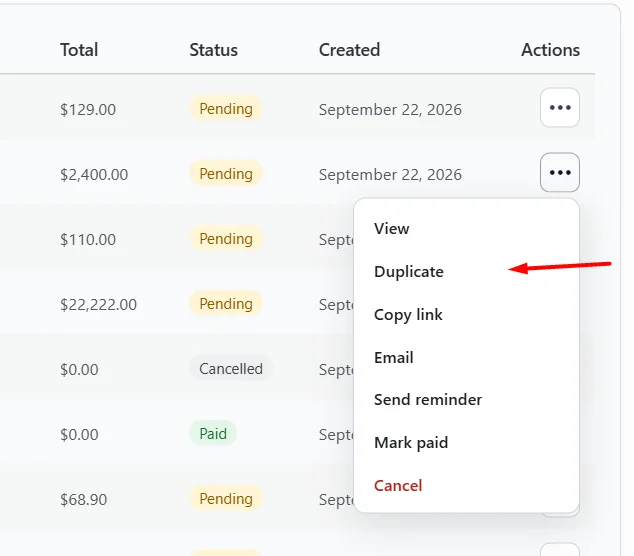
Duplicate from the list or the edit screen. The copy is a new draft, so you can change the customer or the lines before you send it.
Use this when you send the same kind of invoice often and only the client or the amount changes.
View the FluentCart order
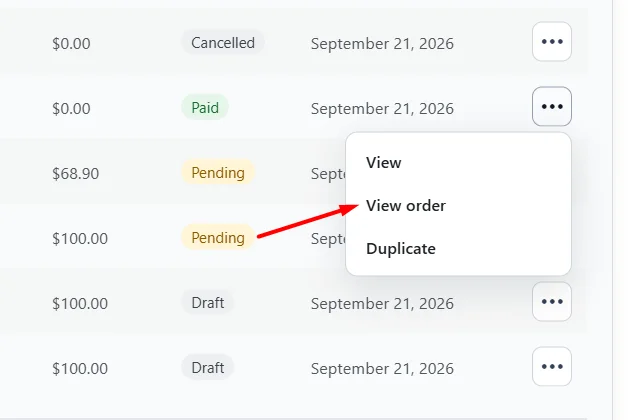
On a paid invoice, View order opens the FluentCart order that the Pay Now checkout created.
Use this when you need the payment, the customer, or the order notes without searching the FluentCart order list.
Checkout message
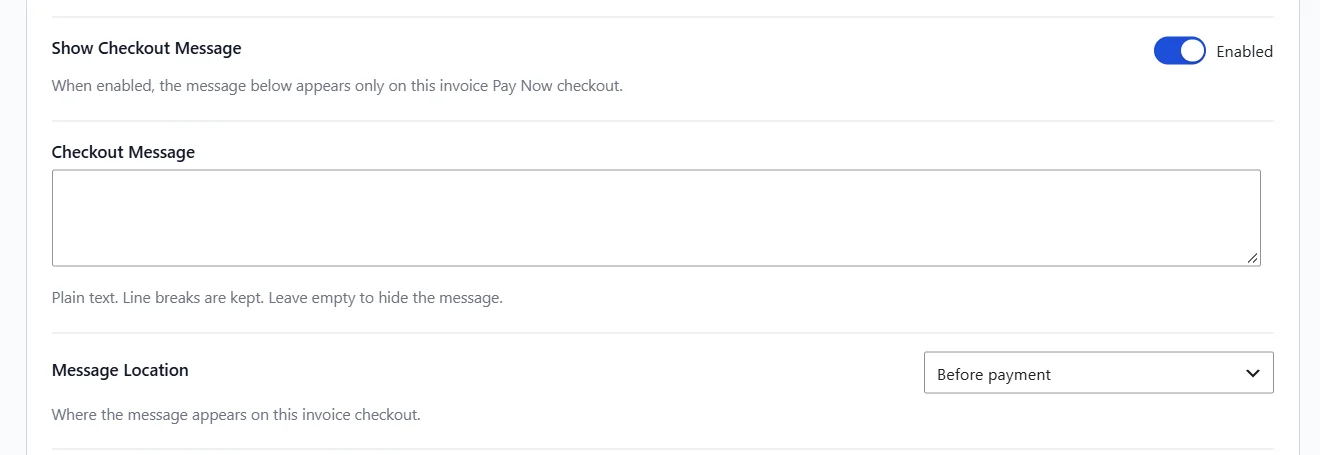
Turn on Show Checkout Message for one invoice. Place it after name and email, before payment, or in the order summary. It shows on that invoice Pay Now checkout only.
Use this for a payment note, a delivery reminder, or anything the client should read before they pay that invoice.
Unpaid invoices in the customer account
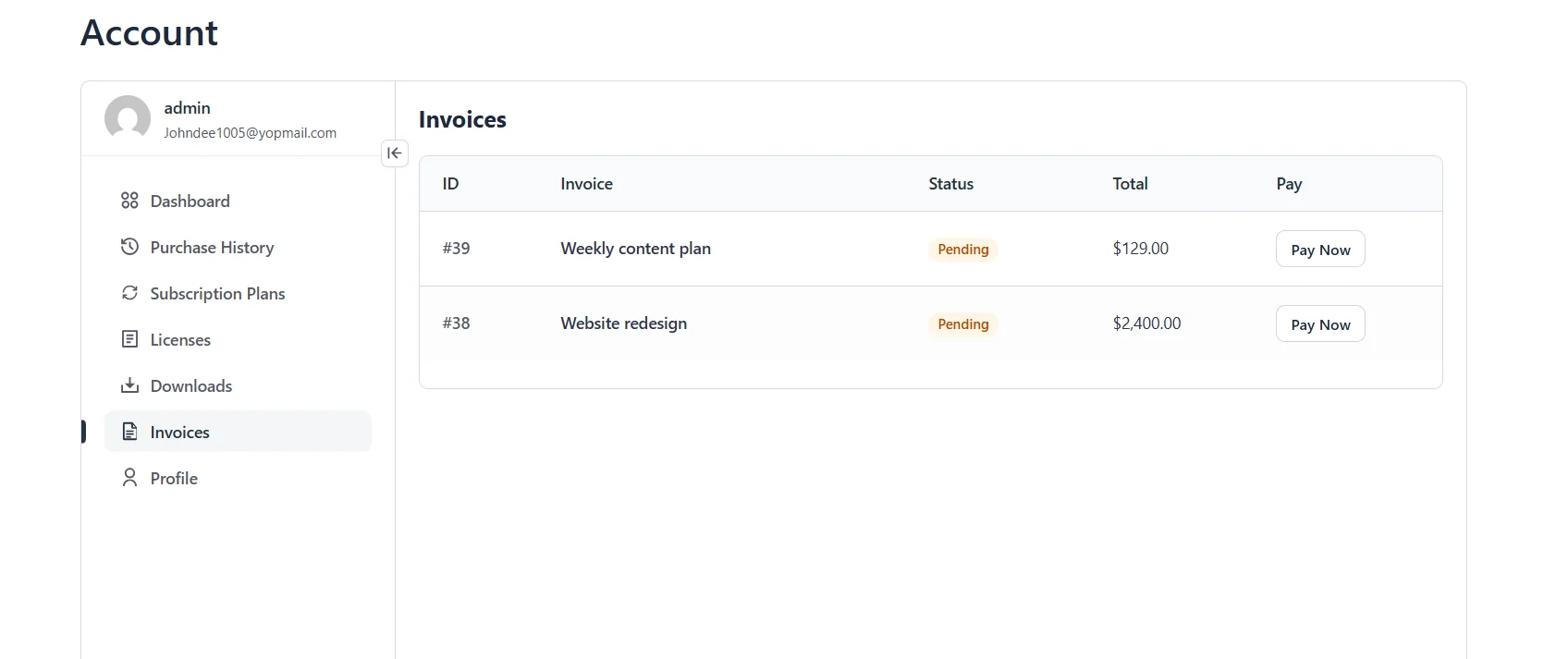
Show Unpaid Invoices In The Customer Account is off by default. When you turn it on, the FluentCart account lists pending invoices for the logged-in email. Each one has a Pay Now link.
Use this when clients already have an account and should pay an open invoice without hunting for the email.
FluentCRM actions
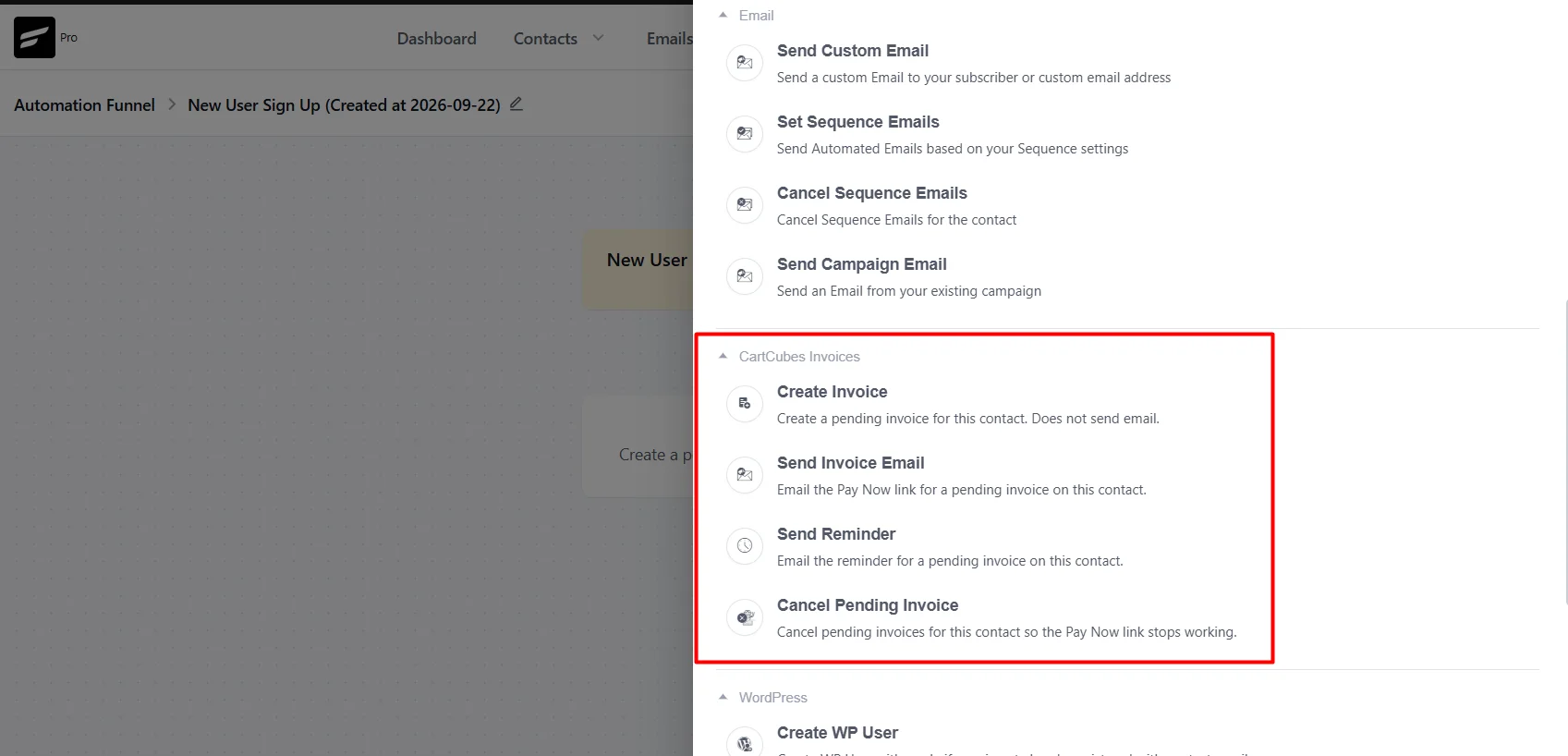
FluentCRM actions stay off until you turn on Enable FluentCRM Actions in Invoice Settings, and FluentCRM must be active. They then show under CartCubes Invoices in an automation.
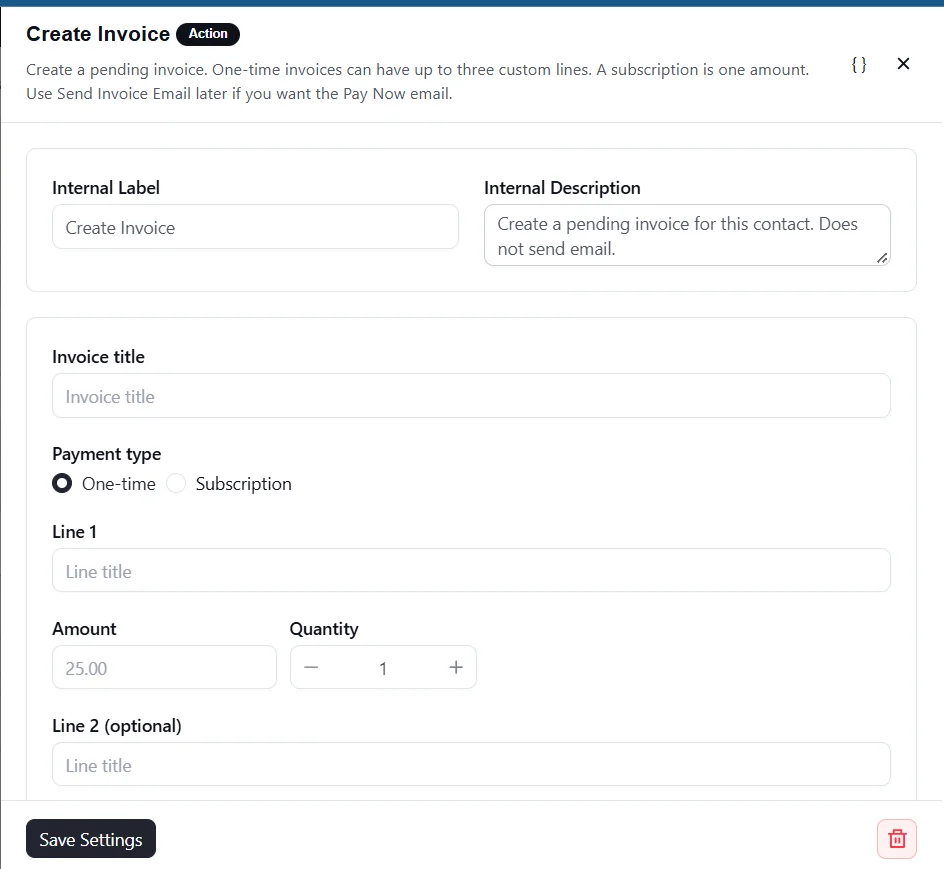
Create Invoice makes a pending invoice for the contact and does not send email. One-time is up to three custom lines. A subscription is one amount, with interval, trial days, and an optional signup fee. Use Send Invoice Email later for the Pay Now email. Send Reminder uses the Reminder template. Cancel Pending Invoice can target the newest pending invoice, every pending invoice with a matching title, or every pending invoice. The Pay Now link stops working.
Use this when a FluentCRM automation should bill a contact, follow up, or cancel an open invoice without opening the invoice screen.
Actions and filters
1.1.0 also adds hooks for other plugins. Filters run before the plugin uses a value. Actions run after an invoice event.
Use a filter when another plugin should change a duplicate, the checkout message, the order link, or the account list. Use an action when it should run code after an invoice is saved, paid, cancelled, or duplicated.
cartcubes_fc_invoices_duplicate_datafilters the insert payload when an invoice is duplicated.cartcubes_fc_invoices_checkout_messagefilters the checkout message before it prints. Return an empty string to hide it.cartcubes_fc_invoices_order_admin_urlfilters the FluentCart admin order URL on a paid invoice.cartcubes_fc_invoices_account_invoicesfilters the unpaid invoice list in the customer account.cartcubes_fc_invoices_account_menu_itemfilters the account menu label and link.cartcubes_fc_invoices_invoice_duplicatedruns after the duplicate is inserted.cartcubes_fc_invoices_invoice_savedruns after an invoice is created or updated.cartcubes_fc_invoices_invoice_paidruns when an invoice is marked paid.cartcubes_fc_invoices_invoice_cancelledruns when an invoice is cancelled.
1.0.1 already added Pay Now hooks. cartcubes_fc_invoices_pay_url_args adds query args, and cartcubes_fc_invoices_pay_url rewrites the Pay Now URL. The email {pay_url} token and the admin Copy link use that same URL. cartcubes_fc_invoices_email_tokens adds or changes email tokens. cartcubes_fc_invoices_ghost_variation filters the checkout ghost item. Prices still come from the invoice.
Get started
Update Invoices from your WordPress dashboard. See pricing and screenshots on the Invoices page, and the full notes on the changelog.

More from the blog
-

Wishlist 1.0.1: the heart stays with the variant
The wishlist heart stays clickable with image zoom, updates when the shopper changes a variant, and…
-
Toolbox 1.2.4: hold downloads until a date
Hold a file until a date and time, or limit who can download it, for the…
-

Introducing CartCubes Discount Rules for FluentCart
Automatic discounts for FluentCart, with no coupon code. Percentage off, fixed amount, fixed price, quantity tiers,…