
CartCubes Gift Card for FluentCart 1.1.0 (14 Nov 2026) opens the card list inside FluentCart. A card can pay the total after tax, an order can use more than one code, and each code shows on the admin order, the customer purchase history, and the printable receipt. See the Cards page and the changelog.
Gift Cards in the FluentCart menu
Open Gift Cards from the FluentCart admin menu, under Invoices. Settings, emails, and reports stay on the CartCubes Gift Card page. The first settings tab is Overview.
The list shows Code, Owner, Balance, Status, Delivery, Expires, and Issued. Filter by All, Active, Pending, Suspended, Redeemed, Expired, or Void, or search by email or code. The footer shows the page, rows per page, and the total. An empty list uses the same cart illustration as the other FluentCart lists. Issue card starts a new code.
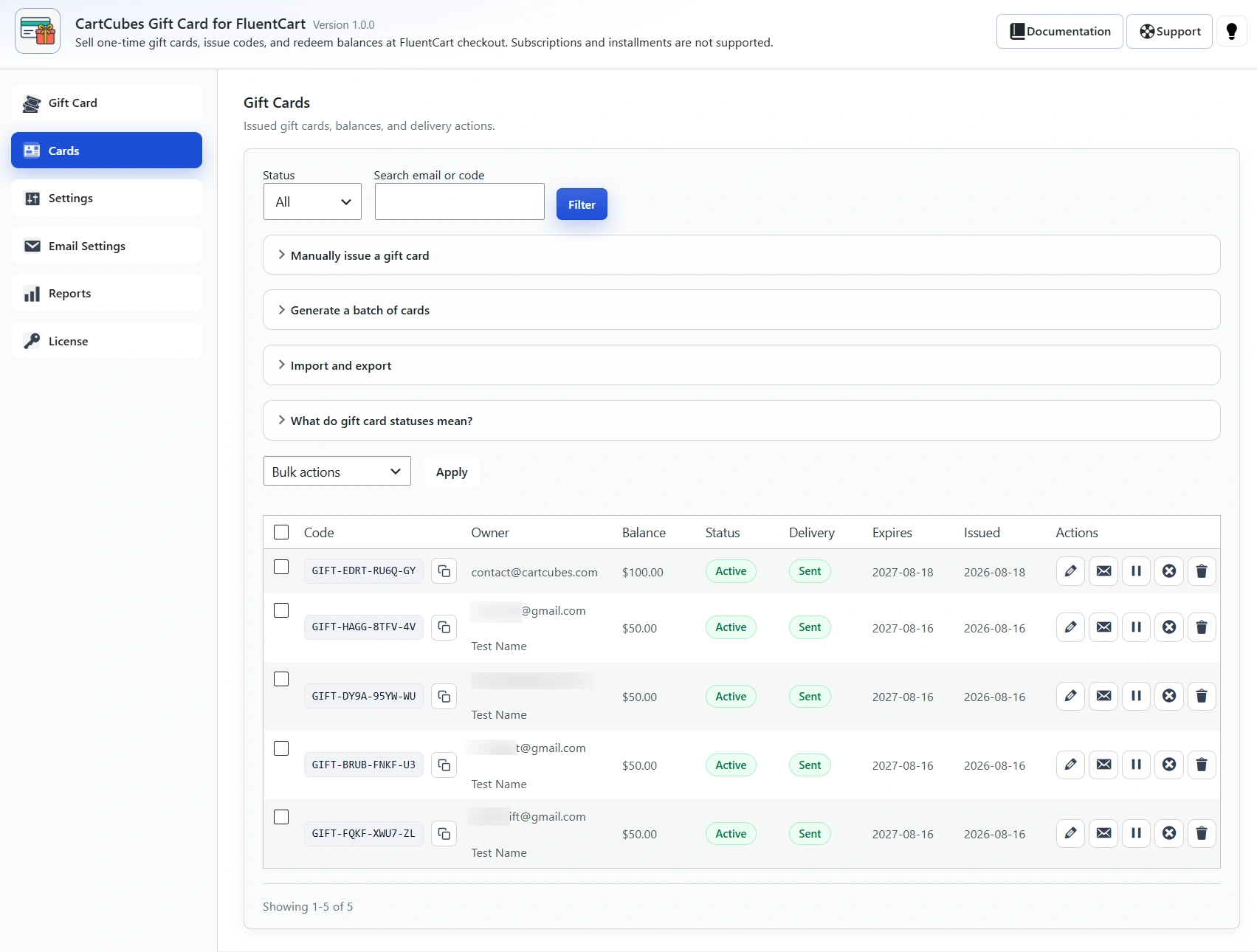
More actions and each row
More actions covers the work you do on the whole list.
- Export downloads the cards as CSV. Amounts are in dollars. A whole number with no decimal is still read as cents, so an older export can be imported.
- Import uploads a CSV of cards.
- Bulk Generate creates a batch with no email. Set how many, the amount each, an optional expiry date, and a ledger note.
- Status info explains what each status means.
Each row has Adjust, Resend, Suspend, Void, and Delete. Adjust sets a new balance and writes it to the ledger. Resend keeps the menu open and shows a spinner while the delivery email sends. Suspend can be restored. Void and Delete ask you to confirm.
Issue card asks for the owner email, amount, recipient name, message, and expiry date, then sends that one code.
What the statuses mean
- Active can be redeemed at checkout.
- Pending is scheduled for later delivery and cannot be redeemed yet.
- Redeemed means the balance is fully used.
- Suspended is blocked, usually after a refund. The balance is kept and the card can be restored.
- Expired is past the expiry date.
- Void was cancelled by an admin or a refund and cannot be used.
Apply Gift Card After Tax
This sits on Gift Card, Settings, Redemption, and it is off by default. Leave it off and the gift card stays a discount that lowers the taxable amount. Turn it on and tax stays on the full item price, then the gift card pays toward the total, including tax. An after-tax card sits in the order totals, above the total.
The setting stays on after you save. Applying the same code twice does not change the total. Removing a card still works when this is on, and checkout payment methods finish loading after a card is applied or removed.

Allow Multiple Gift Cards
Also on Redemption, and on by default. Customers can use more than one gift card on an order. Turn it off to allow only one code.

Where a used card shows
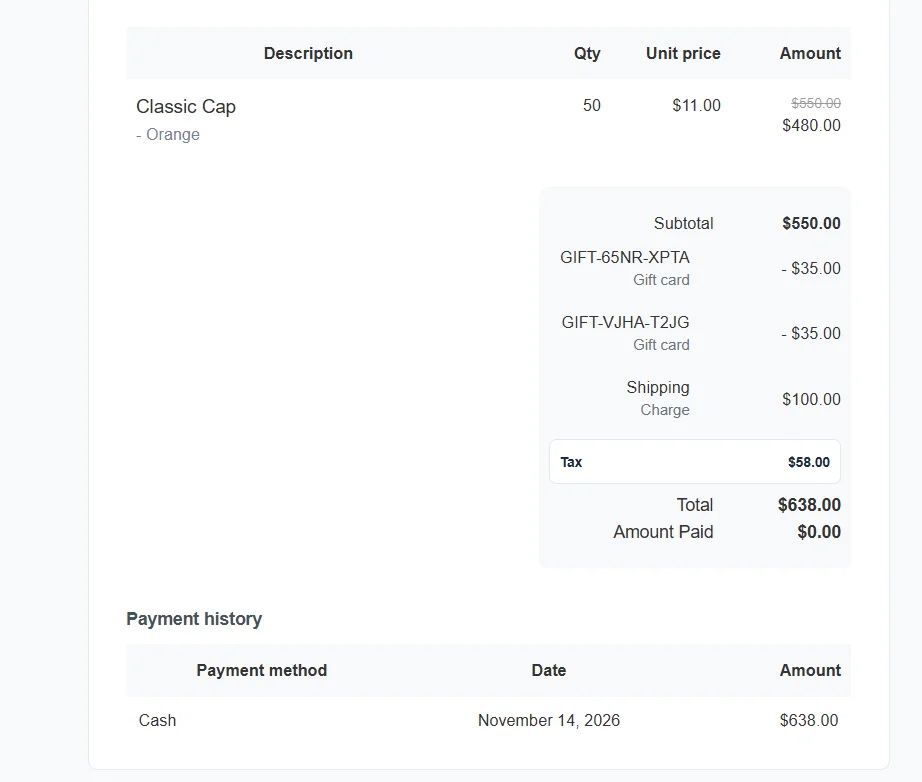
A used card shows for both discount cards and after-tax cards. The code is on the first line, with Gift card underneath, the same way Shipping shows Charge.
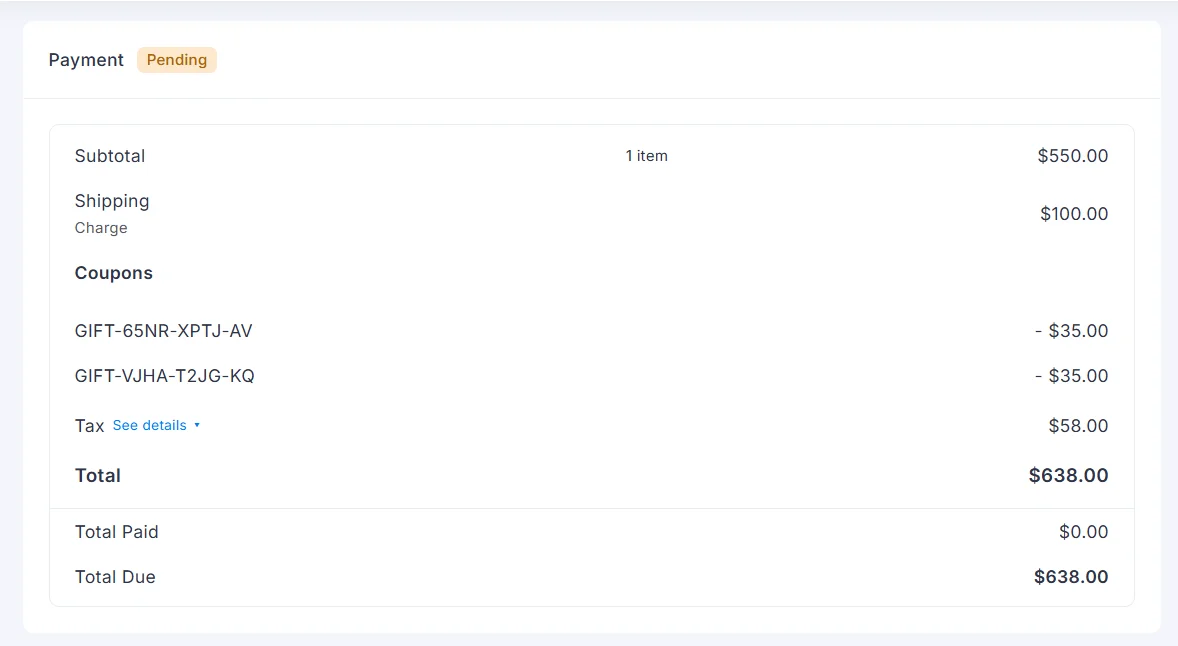
Admin order
The admin order totals list each code and the amount. An after-tax card sits above the total.
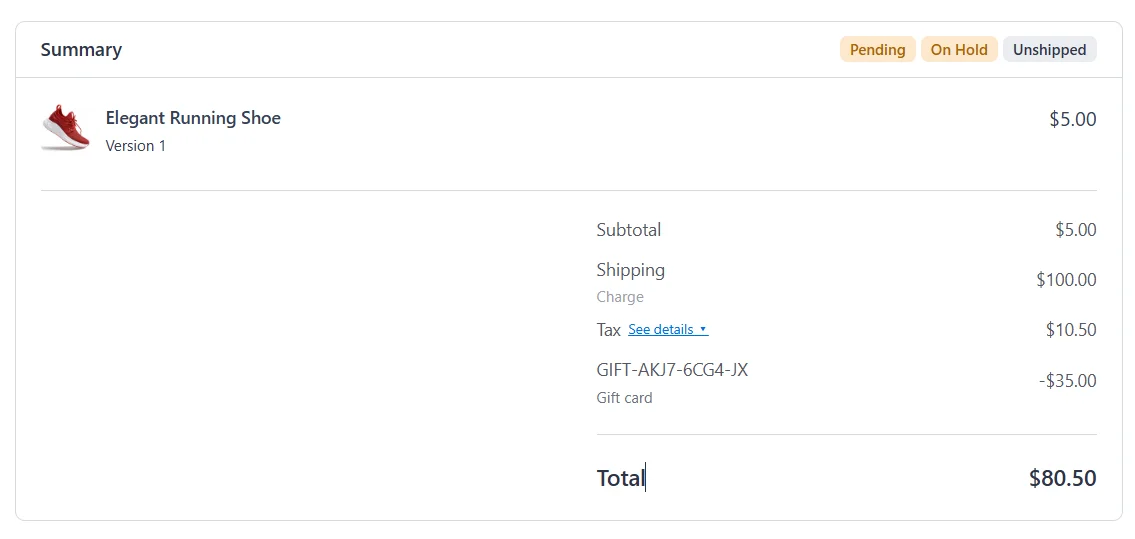
Purchase history
The customer order shows the same line: the code, then Gift card, then the amount.
Printable receipt
The thank you receipt lists each code and amount in the totals, with Gift card under the code.
Reports
Reports still cover last 7 days, last 30 days, last 90 days, last 12 months, all time, and a custom range. The metric cards sit below the date filter. Export Cards to CSV uses the dates you picked.
Export redemptions to CSV downloads one row per redemption: date, order id, gift card code, currency, amount, and balance after. Amounts are in dollars.

Get started
Update Gift Card from your WordPress dashboard. Open Gift Cards from the FluentCart menu, and set after-tax and multiple cards under Settings, Redemption. Screenshots are on the Cards page, and the full notes are on the changelog.
More from the blog
-
Toolbox 1.4.0: request a quote and product instructions
Shoppers can request a quote, and each product can show instructions on the receipt, the thank…
-
Toolbox 1.3.0: EU base price
Turn on EU Base Price, set a reference such as 100 g, and shoppers see a…
-
Toolbox 1.2.8: order documents and repeat subscriptions
Attach PDFs to the customer order confirmation, and stop a second purchase of an active or…