
CartCubes Toolbox for FluentCart 1.2.5 (14 Oct 2026) can save a checkout answer on the shopper’s FluentCRM contact. The order keeps that answer either way. Leave the FluentCRM field blank, and nothing is copied to the contact.
Where you choose the field
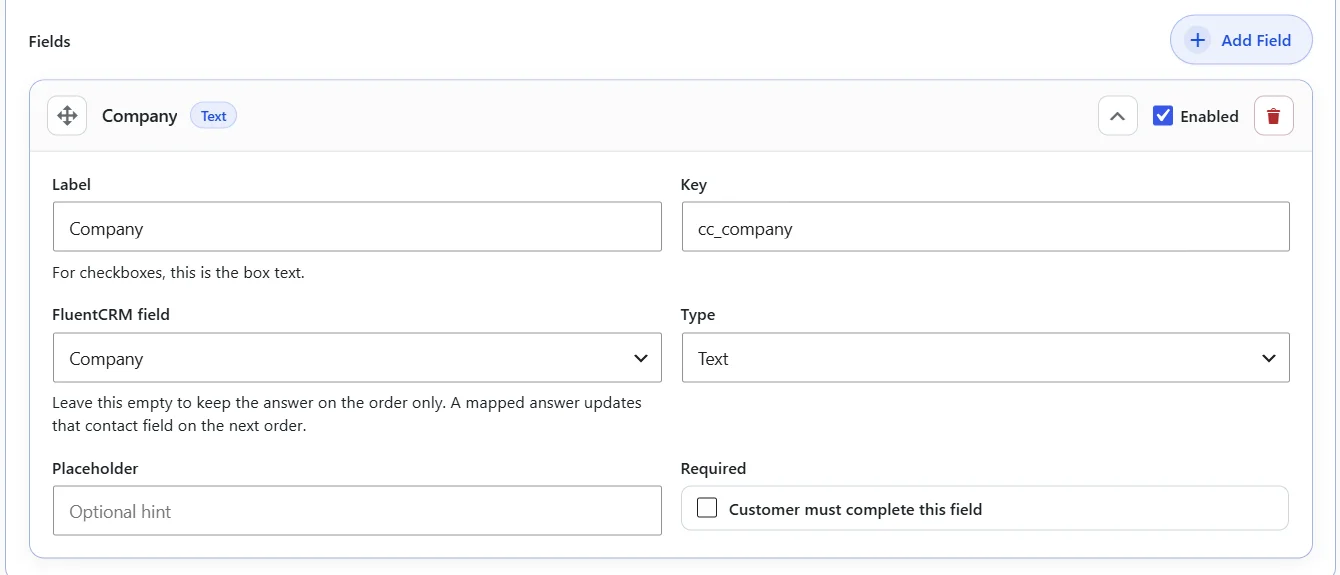
In WordPress admin, go to FluentCart, then Toolbox, then Checkout Fields. Open a field. Below the label and key, FluentCRM field lists Do not save to FluentCRM, then the custom fields you already created in FluentCRM.
That list appears when FluentCRM is active. Text, textarea, checkbox, select, and date fields include it. A file field does not.
How to use it
- Create the custom field in FluentCRM first. Only fields that already exist on contacts appear in the list.
- Open the checkout field under Toolbox, Checkout Fields.
- Choose the contact field. A Company question can point at Company. Until you choose one, the answer stays on the order.
- Save. The shopper still fills the same field at checkout.
What happens on the order
When the shopper places an order, Toolbox saves the answer on that order. If you chose a FluentCRM field, it finds the contact with the same email and updates only that field.
Toolbox does not create a contact. If FluentCart creates one when the order is paid, Toolbox writes the field then. Lists, tags, name, email, and the contact’s other custom fields are left as they are.
A blank text answer does not wipe a value already stored on the contact. A checkbox saves yes or no. A file stays on the order.
Get started
Update Toolbox from your WordPress dashboard. See the field on the Checkout Fields page, and the full notes on the changelog.
More from the blog
-
Toolbox 1.2.8: order documents and repeat subscriptions
Attach PDFs to the customer order confirmation, and stop a second purchase of an active or…
-

Introducing CartCubes Trick-or-Treat for FluentCart
A free cart and checkout bar. Shoppers see the trick until they reach a goal, then…
-
Invoices 1.2: numbers, print, and the FluentCart invoice screen
Open Invoices from FluentCart, number them with your own prefix, and print them with your store…