
A cart can feel finished before the shopper has reached the offer you wanted them to see. CartCubes Trick-or-Treat for FluentCart is a free addon that puts a bar in the cart and on checkout. Before the goal, shoppers see the trick. When the goal is met, they see the treat. The treat can show a message, or also apply a FluentCart coupon you already created.
What it does
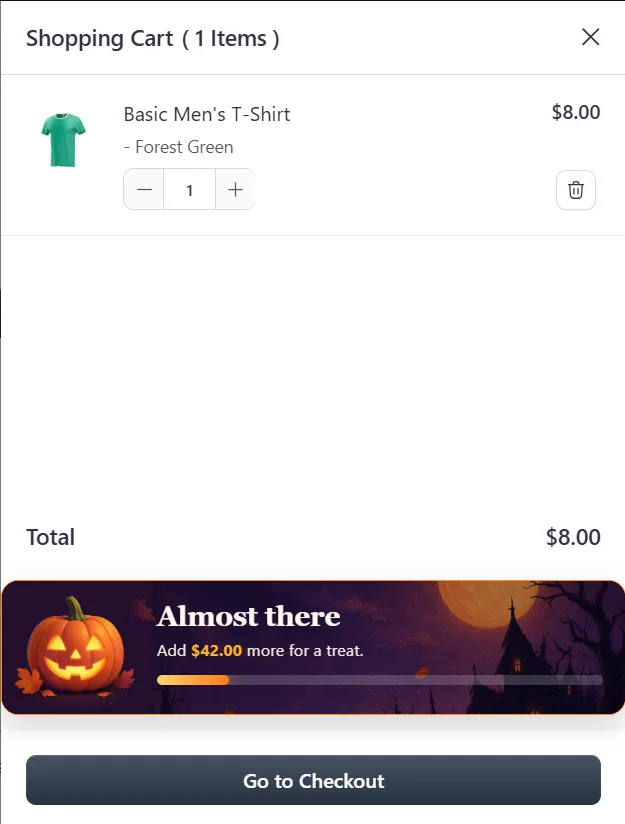
The same bar sits above Go to Checkout in the cart drawer and at the top of checkout. It updates as the cart changes. Place it on any other page with the shortcode [cartcubes_trick_or_treat]. The shortcode shows the bar and never applies the coupon.
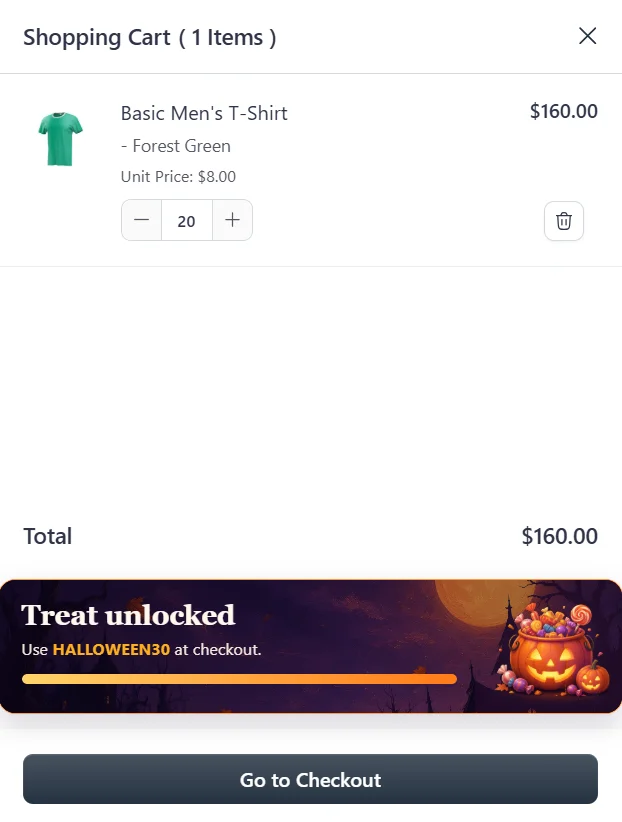
Before the goal, the trick tells the shopper what is still needed. After the goal, the treat replaces it. The coupon code stays hidden until the treat is showing.
Set it up
CartCubes Trick-or-Treat for FluentCart 1.0.0 (25 Oct 2026) is free. Checkout gives you a license key. Open Trick-or-Treat, License, and activate that key. The cart and checkout bar does not show until the license is valid.
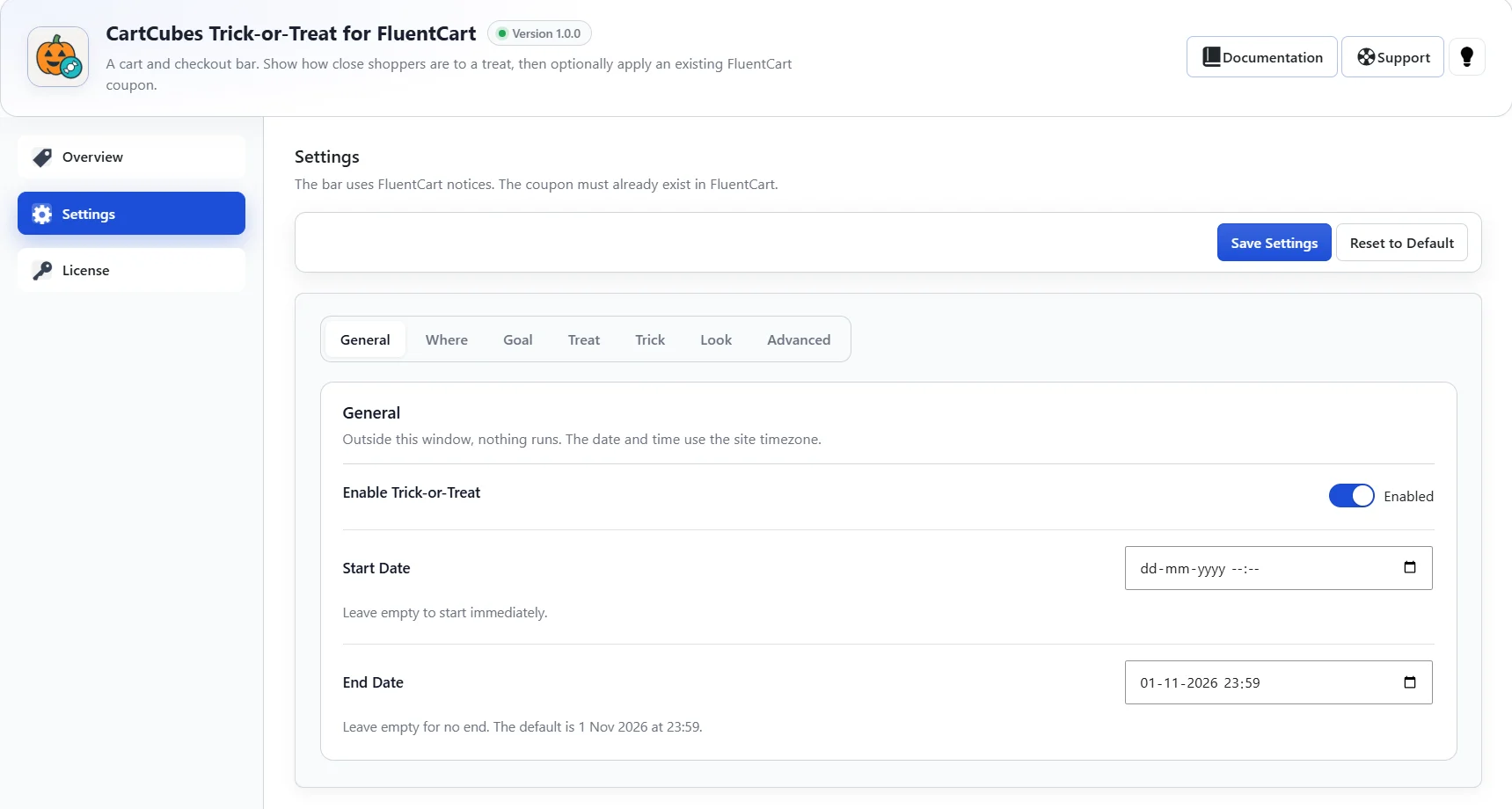
On General, turn on Enable Trick-or-Treat. Set a start and end date and time. Times use the site timezone. Leave Start Date empty to begin immediately. The default end is 1 Nov 2026 at 23:59. Leave the end empty if the campaign should not stop.
On Where, turn on the cart drawer, checkout, or both. The shortcode stays available either way.
Pick a goal
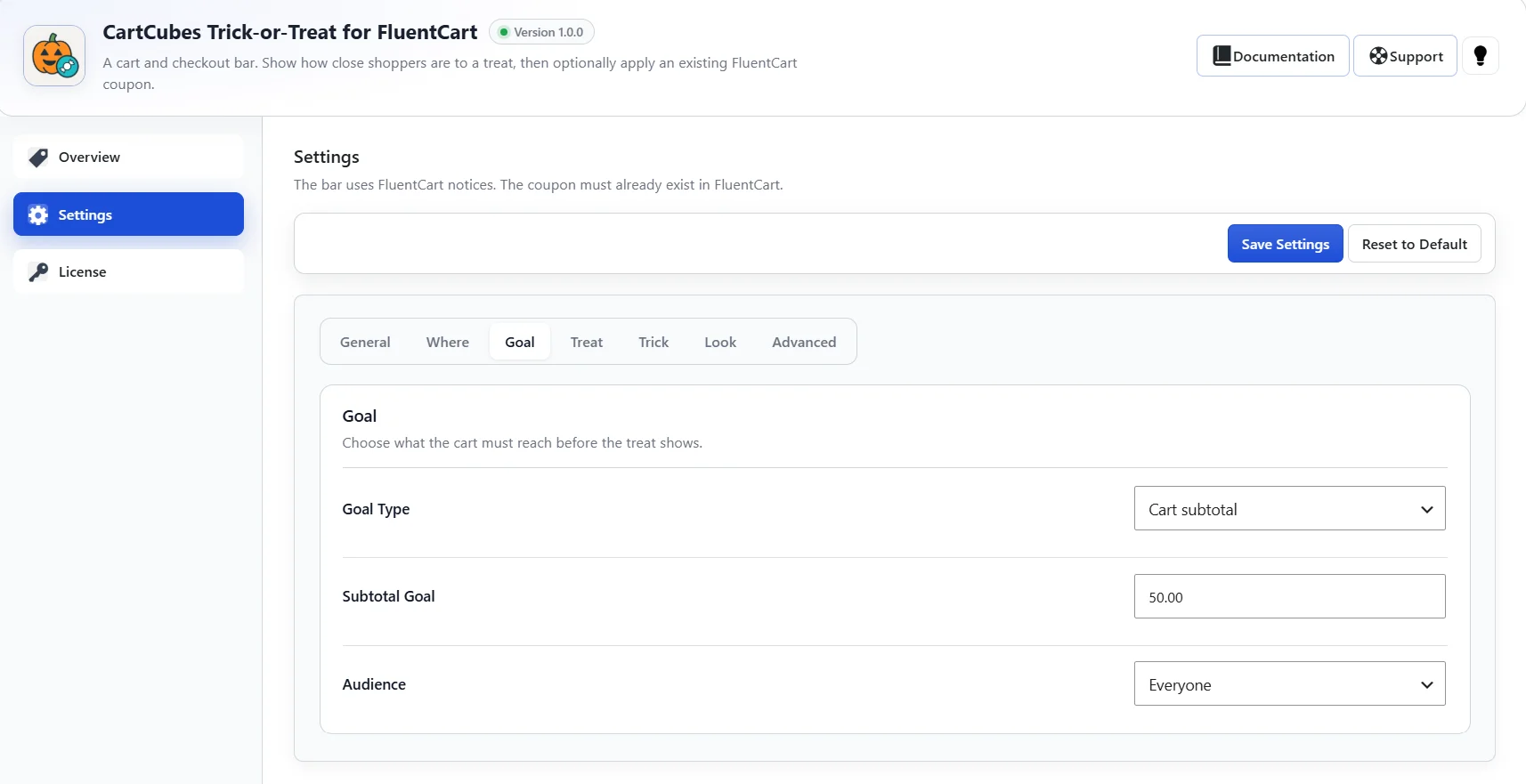
Only one goal type runs at a time. On Goal, choose one of these:
- Cart subtotal – compare the cart subtotal with an amount. The default is 50.00. The trick tells the shopper how much is left.
- Item count – count the quantities in the cart. The default goal is 2.
- Products – search and add one or more products. Each choice stays as its own chip. The goal is met when any selected product is in the cart. Pick a specific variation, or any variation of a product.
Audience sits on the same tab. Show the bar to everyone, to logged-in customers, or to guests.
Connect a coupon
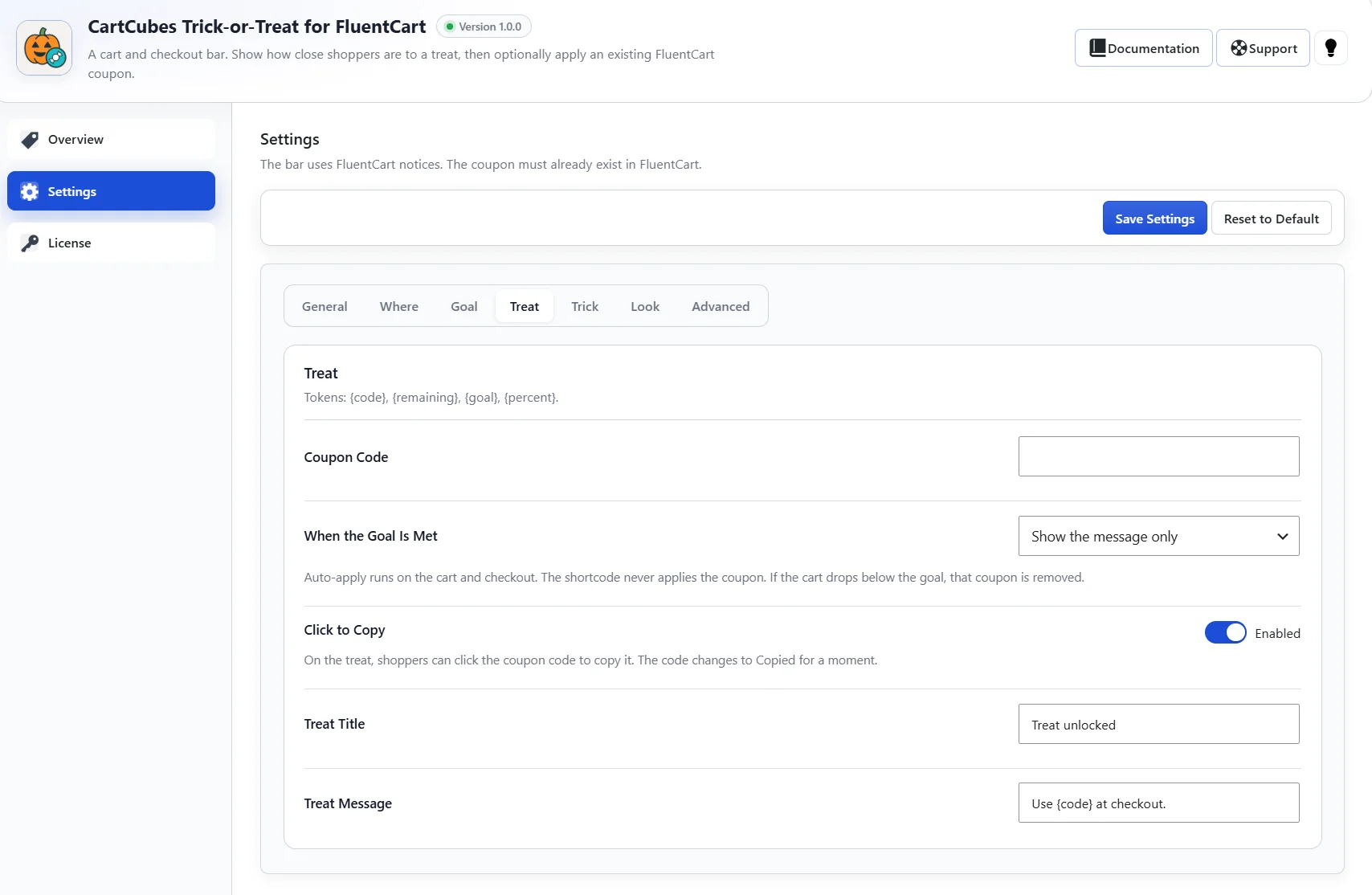
The plugin does not create a coupon. Add the code, the discount, and any product or date limits in FluentCart Coupons first. Then open Treat and paste that same code.
Choose Show the message only, and the shopper can enter the code. Choose Show the message and apply the coupon, and the code is applied when the goal is met. If the cart drops below the goal, that coupon is removed. If a shopper removes it while the goal is still met, it stays off until the cart drops below the goal again.
Click to Copy is on by default. On the treat, the code can be clicked, and it changes to Copied for a moment. Turn the switch off to leave the code as plain text. In the title and message you can use {code}, {remaining}, {goal}, and {percent}.
Look and schedule
The illustrated banner is the default. It uses the night sky, a pumpkin while the goal is open, and treat art when the goal is met. You can replace each image from the media library. The simple card has no images and matches FluentCart. You can also set a progress bar, an accent color, a title emoji, and a CSS class.
On Advanced, limit the bar to selected weekdays. Leave every weekday off to run all week. Hide the bar after the coupon is applied, or skip the treat when another coupon is already on the cart. Outside the date window, nothing runs.
Get it free
CartCubes Trick-or-Treat for FluentCart is free. Get it free, see the screenshots on the Trick-or-Treat page, and read the full notes on the changelog.
More from the blog
-

Toolbox 1.2.8: order documents and repeat subscriptions
Attach PDFs to the customer order confirmation, and stop a second purchase of an active or…
-

Invoices 1.2: numbers, print, and the FluentCart invoice screen
Open Invoices from FluentCart, number them with your own prefix, and print them with your store…
-

Toolbox 1.2.5: checkout answers on the FluentCRM contact
Save a checkout answer on a FluentCRM custom field. Leave the field blank and the answer…