

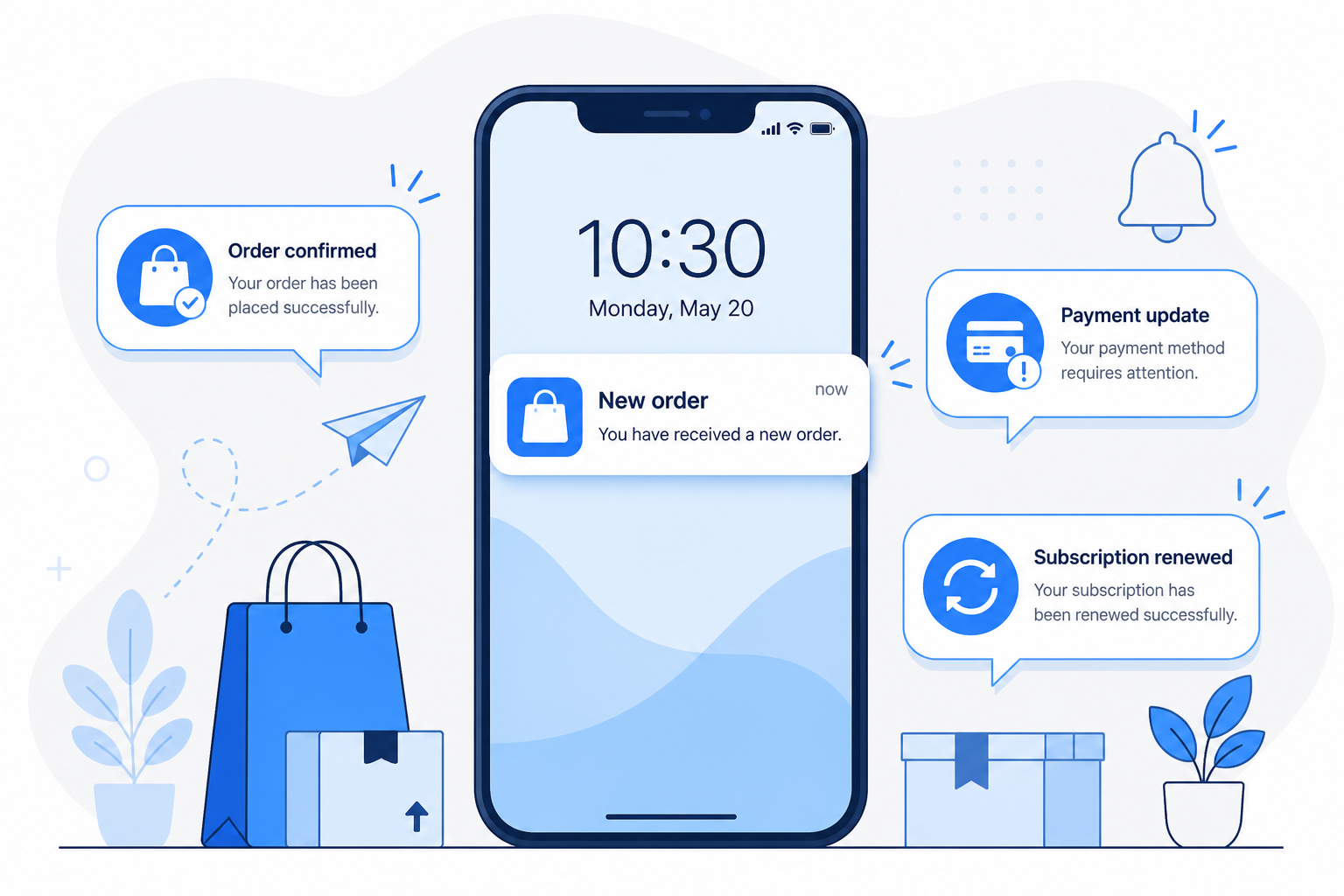
If you run a SureCart store, you already know the feeling: a sale comes in while you are away from the laptop, a payment fails overnight, or a subscriber cancels and you find out hours later. Refreshing the dashboard is not a strategy. Push notifications in CartCubes put the moment that matters on your phone the second it happens.
Why push notifications matter for store owners
Real-time alerts are not a nice-to-have for commerce-they are how you keep up when you are not parked in WordPress all day.
- Fulfill faster – know the instant a customer completes checkout so you can ship, unlock access, or reply while the purchase is still fresh.
- Catch payment failures early – a failed charge is easier to fix when you hear about it immediately, not the next morning.
- Stay on top of refunds – refund activity shows up on your phone so nothing slips past you.
- Watch subscriptions – new plans and cancellations land as alerts so you can track growth and churn without digging through reports.
- Optional high-volume signals – turn on renewals, abandoned checkouts, or new customers when you want that stream; leave them off when you want a quieter phone.
How CartCubes push works
You do not paste webhook URLs into the SureCart admin. After you connect your store and activate a CartCubes license, open More → Notifications and tap Enable notifications. CartCubes wires the store connection automatically. When the status card shows Active on this store, events from that account forward to your device.
Browsing your store, dashboard stats and lists stays free with a store token. Push alerts require an activated CartCubes license for the store you want notifications from.
What you can get notified about
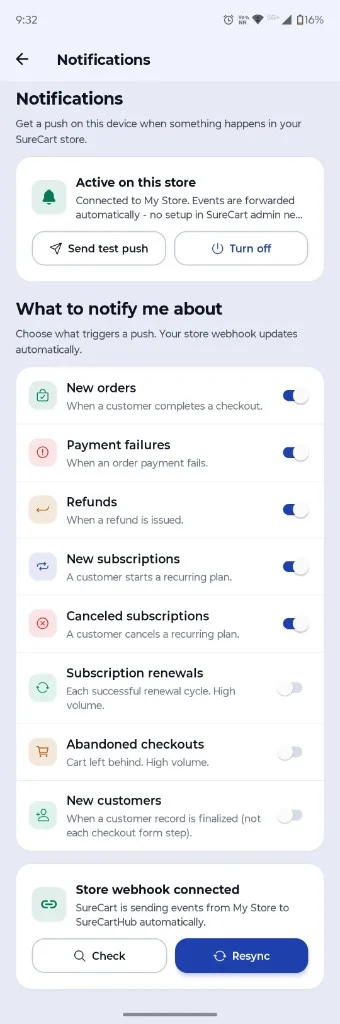
Under What to notify me about, toggle each event type. Your store connection updates when you change a switch. Defaults favor high-signal alerts so your phone stays useful, not noisy:
- New orders – when a customer completes a checkout (on by default)
- Payment failures – when an order payment fails (on by default)
- Refunds – when a refund is issued (on by default)
- New subscriptions – a customer starts a recurring plan (on by default)
- Canceled subscriptions – a customer cancels a recurring plan (on by default)
- Subscription renewals – each successful renewal cycle; high volume (off by default)
- Abandoned checkouts – cart left behind; high volume (off by default)
- New customers – when a customer record is finalized, not each checkout form step (off by default)
Turn it on in three steps
- Connect your store with a secret API token – see Connecting your store.
- Go to More → CartCubes license and activate your key for this store – or buy a license.
- Tap More → Notifications, then Enable notifications and allow the system prompt.
For the full walkthrough with screenshots, see Push notifications in the docs.
Stay in control
- Send test push – confirms delivery to this device in a few seconds.
- Turn off – stops push for the active store on this phone.
- Check / Resync – if alerts stop arriving, verify the store connection or resync it from the Notifications screen.
Tap a push alert to jump straight into the related order, subscription or customer. You can also browse recent events from the bell icon on the Dashboard.
Settings are per store. Switch accounts under Managing multiple stores, then open Notifications again for that account. Multiple phones can receive alerts for the same store-each device keeps its own toggles.
Get started
Ready to stop refreshing and start reacting? Explore the CartCubes for SureCart app, activate a license, and turn on push from More → Notifications. When something happens in your store, your phone will already know.

More from the blog
-
Wishlist 1.0.1: the heart stays with the variant
The wishlist heart stays clickable with image zoom, updates when the shopper changes a variant, and…
-
Toolbox 1.2.4: hold downloads until a date
Hold a file until a date and time, or limit who can download it, for the…
-
Introducing CartCubes Discount Rules for FluentCart
Automatic discounts for FluentCart, with no coupon code. Percentage off, fixed amount, fixed price, quantity tiers,…