

CartCubes Toolbox for FluentCart 1.2.1 lets you set the shop product order, send a buy button to another URL, and limit an account tab to selected customers. See the Toolbox page and the changelog.
Product order
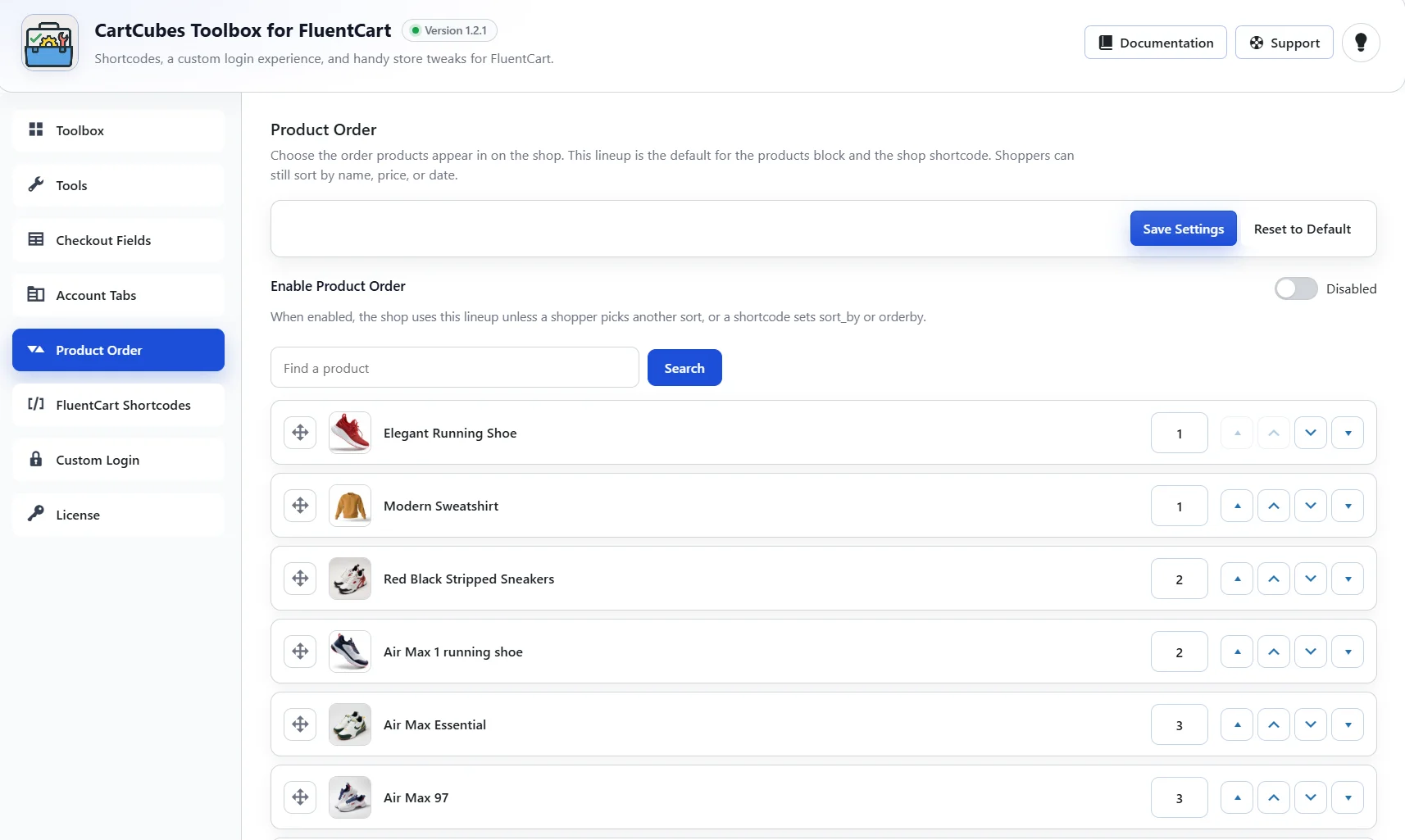
Enable Product Order and arrange the lineup. That order is the default for the shop, the products block, and the shop shortcode. Shoppers can still sort by name, price, or date.
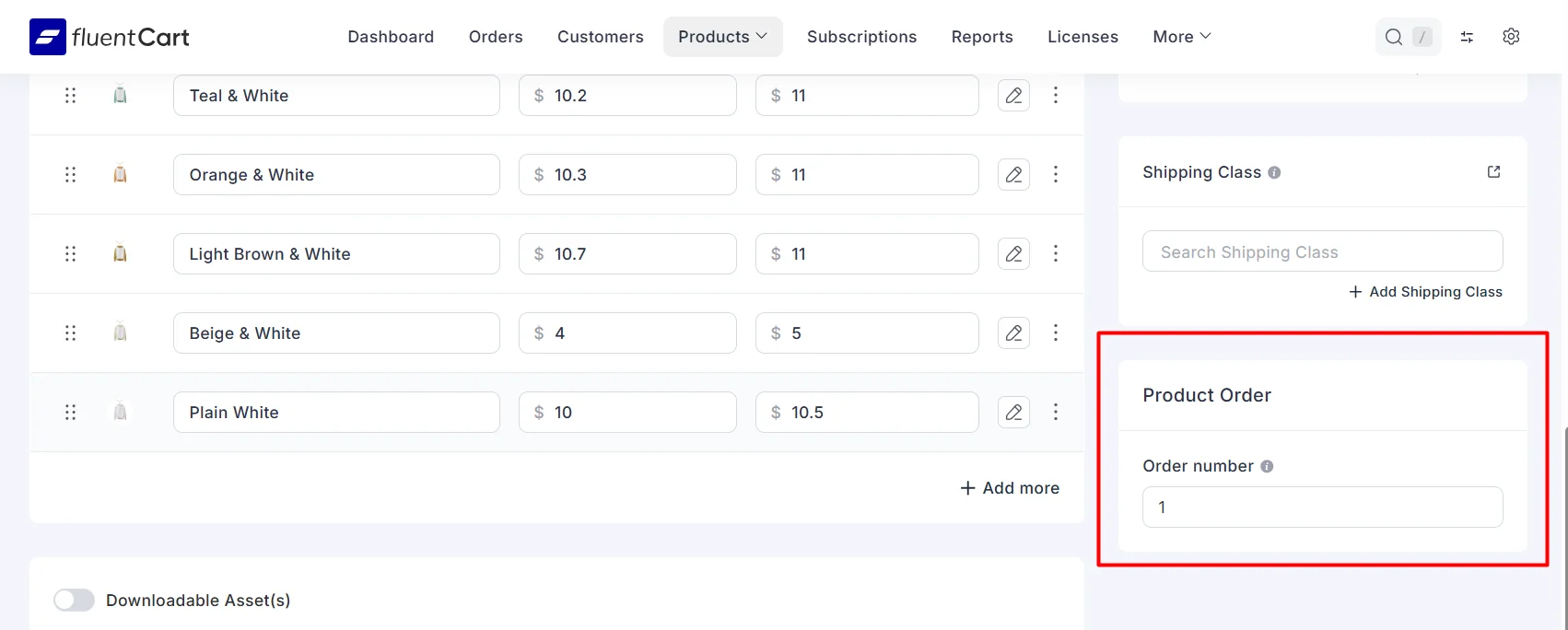
Reorder by drag, move arrows, or an order number. Search the list by product name. Drag is off while a search is active. On the product editor, Order number uses the same lineup: a lower number shows first, and a blank value keeps that product at the end. Reset to Default turns the feature off and keeps the saved lineup.
Use this when the shop should open on a lineup you chose, instead of the default product order.
External product links
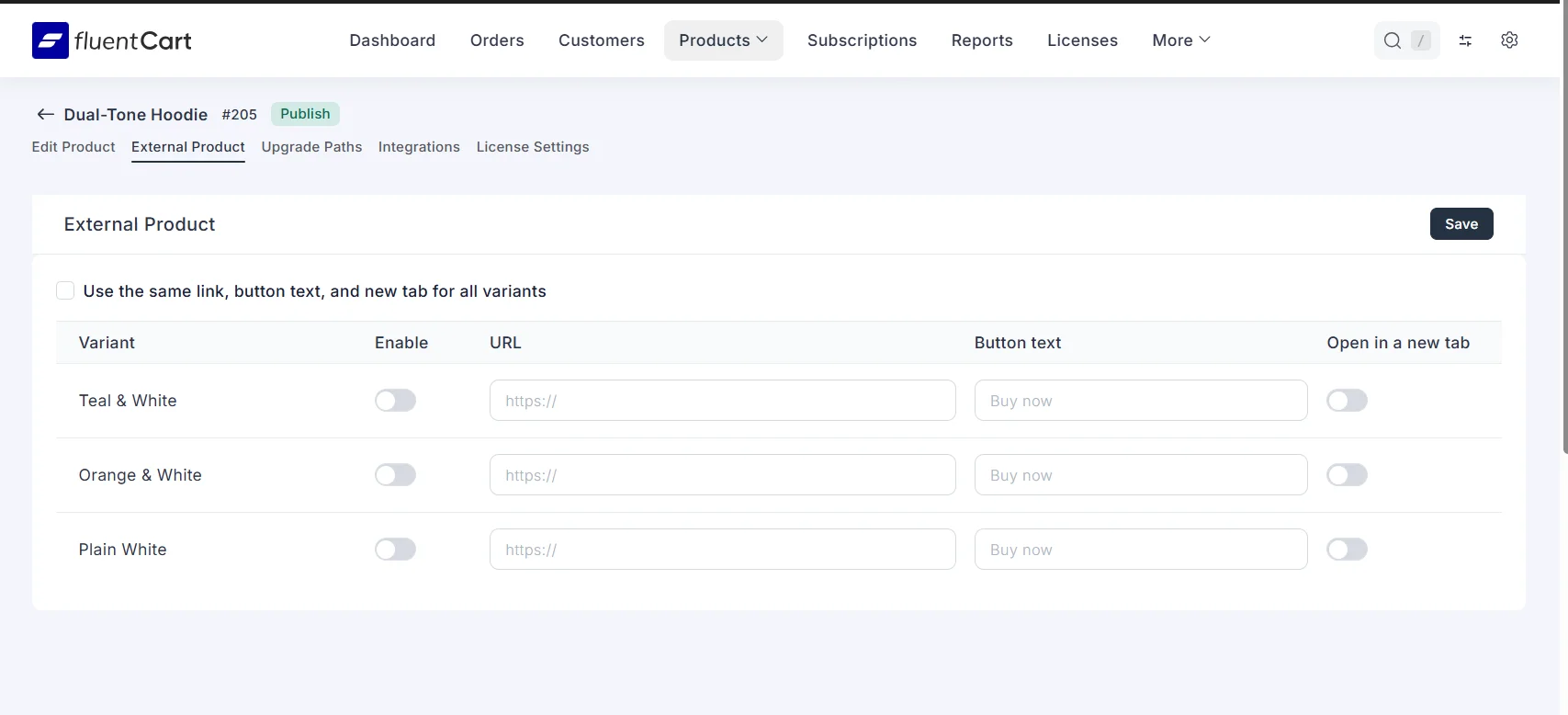
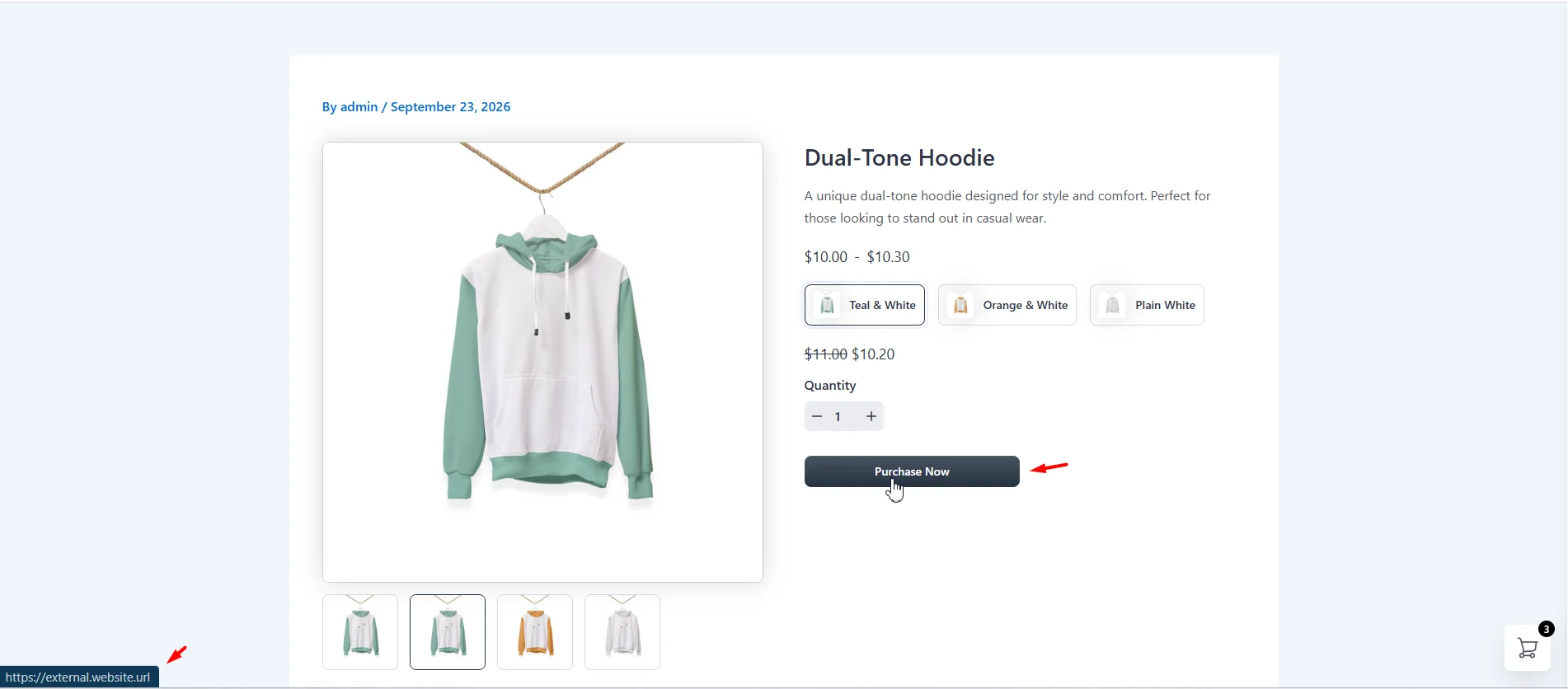
Enable External Product in Tools. Each product then has an External Product tab. Turn it on for the product or a variant, set a URL, button text, and whether the link opens in a new tab. Variants can share one link, or each variant can have its own.
The link replaces Add to Cart and Buy Now on the shop, the product page, the View Options modal, and standalone buy buttons.
Use this when a product should send the shopper to another page, a booking form, or a partner site instead of FluentCart checkout.
Limit an account tab
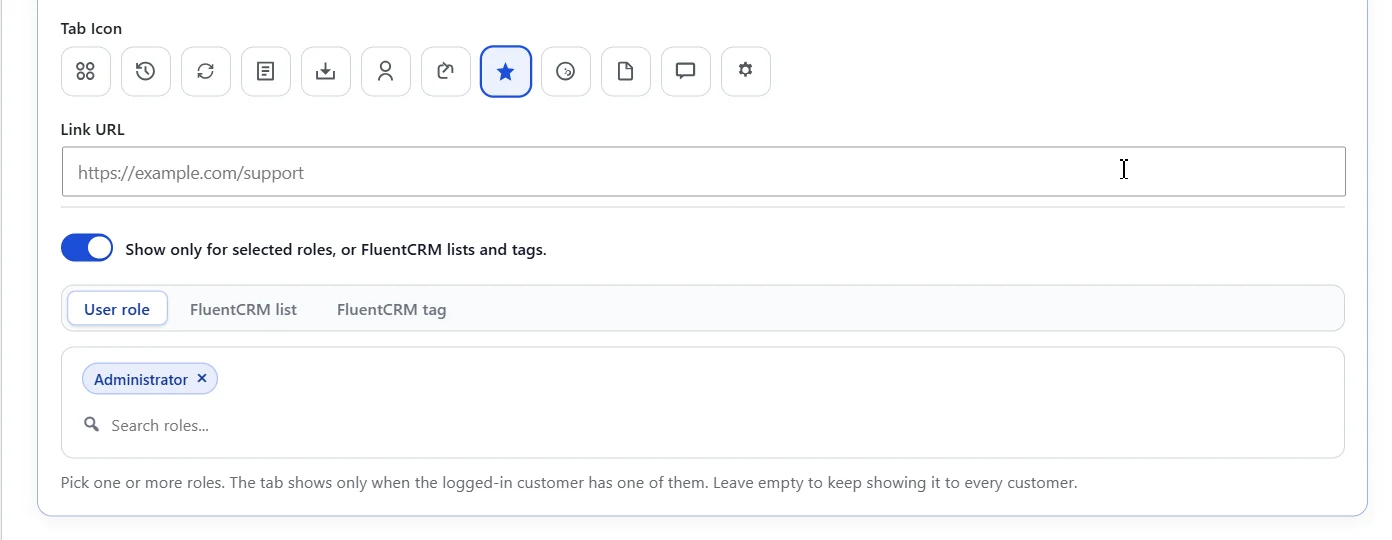
Each custom account tab can be limited to selected WordPress roles, or to FluentCRM lists and tags. Leave the picker empty to keep showing that tab to every customer. FluentCRM has to be active before a list or tag can be used.
Use this for a wholesale tab that only certain roles should see, or a members tab for a FluentCRM list or tag.
Get started
Update Toolbox from your WordPress dashboard. See pricing and screenshots on the Toolbox page, and the full notes on the changelog.

More from the blog
-

Wishlist 1.0.1: the heart stays with the variant
The wishlist heart stays clickable with image zoom, updates when the shopper changes a variant, and…
-
Toolbox 1.2.4: hold downloads until a date
Hold a file until a date and time, or limit who can download it, for the…
-

Introducing CartCubes Discount Rules for FluentCart
Automatic discounts for FluentCart, with no coupon code. Percentage off, fixed amount, fixed price, quantity tiers,…